 StowJar
Pocket closed. Your reading list can move in here.
StowJar is a read-later app for iPhone, iPad and Mac. Give it your Pocket export and your saved articles come back, with their tags, archive and dates. Then read them offline, listen to them, and highlight what matters.
Bring your Pocket list over
You need the export file you downloaded from Pocket. Everything else happens in StowJar.
-
Find your Pocket export
It's a .csv file, often inside a .zip. Unzip it first. Save it somewhere StowJar can reach, like iCloud Drive or your Downloads folder.
-
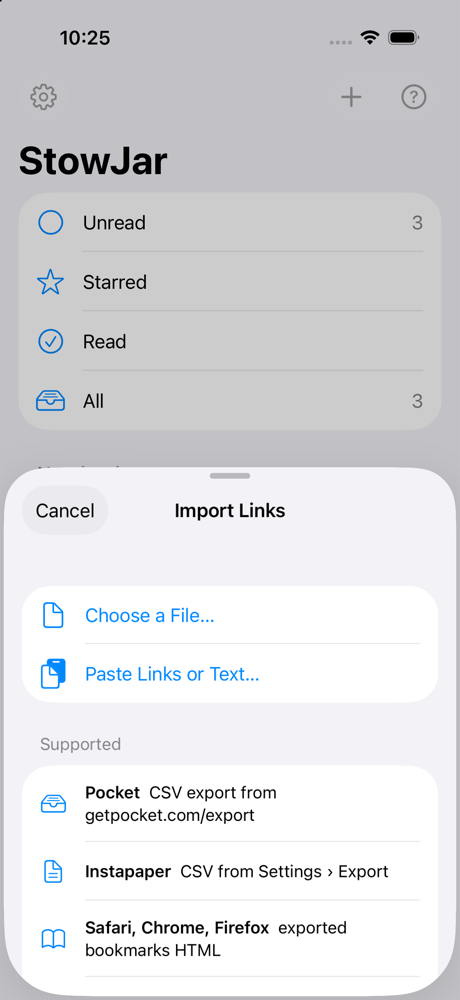
Open Import Links in StowJar
iPhone and iPad: tap the gear at the top left (on iPad, at the top of the sidebar). In Import & Export, tap Import Links…
Mac: choose StowJar › Settings… (Command-,). In Import & Export, click Import Links…
-
Choose the file and check the preview
Pick Choose a File… and select the Pocket .csv. StowJar shows how many links it found, how many you already have (those are skipped), and how many it will import.
-
Import
Leave the options on to keep tags, read state and dates, or add a tag such as from-pocket to everything. Then import. Articles download in the background, so you can start reading straight away.
Your list, the way you left it
| From Pocket | Imported | Notes |
|---|---|---|
| Links and titles | ✓ Yes | The full article text is downloaded again for offline reading. |
| Tags | ✓ Yes | Every Pocket tag becomes a StowJar tag. |
| Archive | ✓ Yes | Archived items arrive marked as read. |
| Date saved | ✓ Yes | The day you saved each item is kept. |
| Favorites | — No | Pocket's export file doesn't include them. |
| Highlights | — No | Pocket's export file doesn't include them. |
Don't have the .csv file?
An older Pocket export saved as a web page (.html) works too. The links come across, but tags, read state and dates may not.
Got a list of links some other way, like a note or a spreadsheet? Use Paste Links or Text… in the same Import screen and StowJar picks out every web address.
Step-by-step help: Bring over a Pocket export.
What you get in StowJar
Buy once
Everything works free for 14 days. After that, one US$14.99 purchase covers iPhone, iPad and Mac. No subscription.
No account
Nothing to sign up for, and no StowJar server holding your list. It lives on your devices and syncs through your own iCloud.
Really offline
Articles and their pictures are saved on your device, so they're there on a plane or the subway.
Listen
StowJar reads articles aloud with your device's voices or an optional natural voice. It works offline too.
Highlights and notes
Mark what matters, add notes, and find them all again in your notebook.
Easy to leave
Export everything as JSON at any time, or send articles out as Markdown, PDF or EPUB.
Good to know
Is StowJar free?
It's free to download, and everything works for 14 days. After that, a one-time purchase (US$14.99) unlocks it for good on iPhone, iPad and Mac. If you don't buy it, everything you saved stays there to read, search and export.
Which devices does it work on?
iPhone and iPad with iOS 26 or later, and Mac with macOS 26 or later. There's no Android, Windows or web version.
How do I save new articles?
Use the Share button in Safari or almost any app and choose StowJar. On Mac, StowJar's Safari extension can also save the page you're on.
What if something doesn't import?
Run the import again with the same file and look at the preview first: links you already have are skipped, not doubled. The import troubleshooting guide covers the rest, or email support@stowjar.com.
Where is my data stored?
On your devices and in your own iCloud account. We never see it. Read the privacy policy.
Give your Pocket list a new home
Download StowJar, import your export, and try everything free for 14 days.